Interactive learning platforms have fundamentally changed how educators and students engage with classroom material. Among these platforms, Quizizz stands out as a powerful tool for delivering gamified quizzes, interactive lessons, and formative assessments. However, the success of any digital tool relies heavily on how easily users can access it. This is where Quizizz join codes come into play.
Understanding how to navigate these codes ensures that learning remains the primary focus, rather than battling with technology. This article will explain exactly what Quizizz join codes are, outline their benefits for both educators and students, provide a clear step-by-step guide on how to use them, and offer troubleshooting tips for common issues.
What Are Quizizz Join Codes?
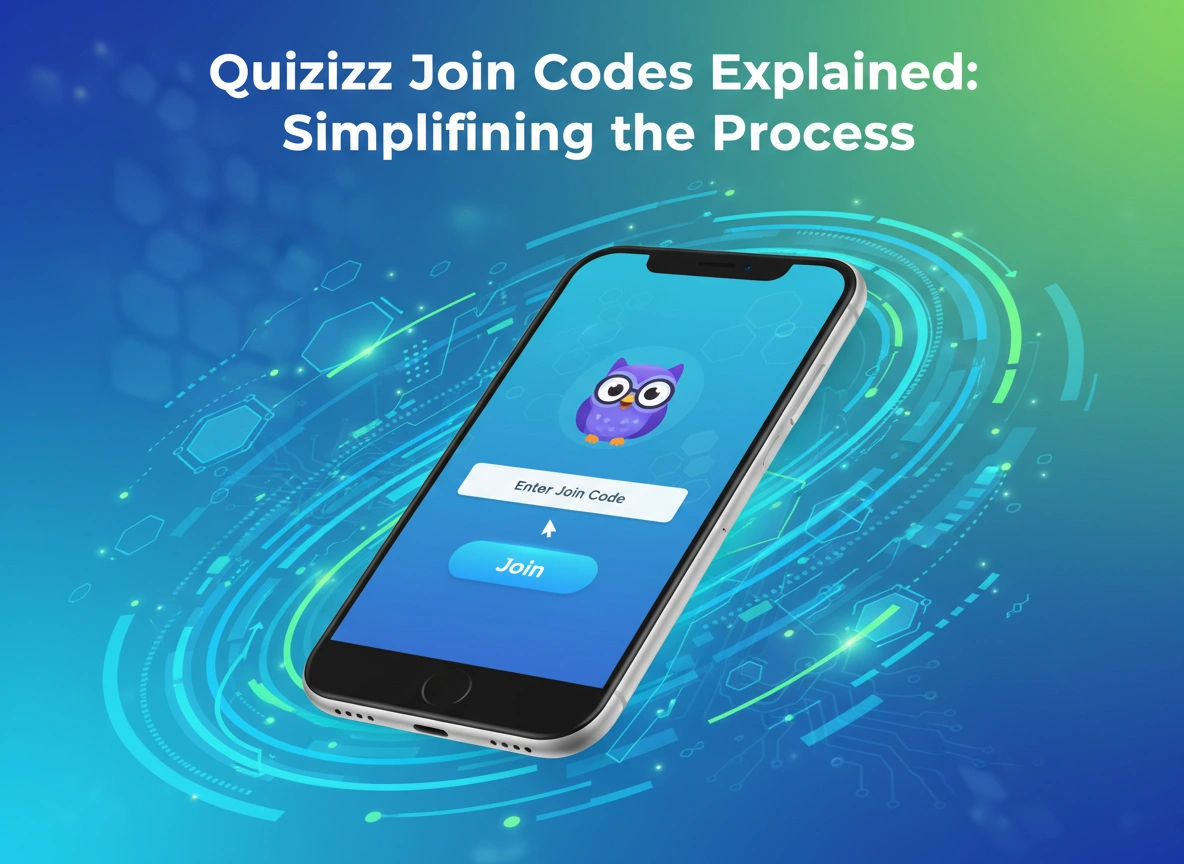
A Quizizz join code is a unique, randomly generated numeric or alphanumeric sequence that connects a student to a specific quiz or interactive lesson hosted by a teacher. Think of it as a digital key. When a teacher creates or selects an activity on the platform, the system generates this code. The teacher then shares it with their students, who input the code on their own devices to enter the virtual classroom or quiz session.
These codes eliminate the need for complex registration processes or lengthy email invitations. They serve a simple but critical purpose: securely and swiftly bridging the gap between the teacher’s instructional content and the student’s device. Whether the quiz is taking place live in a physical classroom or assigned as asynchronous homework, the join code ensures every participant lands in the correct digital space at the right time.
The Benefits of Using Join Codes
The implementation of a straightforward code system provides distinct advantages for everyone involved in the educational process.
How Teachers Benefit
For educators, time is always a limited resource. Managing a classroom—whether physical or virtual—requires smooth transitions between activities. Join codes offer a frictionless way to start an assessment or lesson. Instead of manually adding students to a roster or emailing individual links, teachers simply display the code on a smartboard or post it in a learning management system (LMS).
Furthermore, join codes offer flexibility. Teachers can generate codes for live, synchronous games where the whole class competes together, or they can generate codes for asynchronous assignments that students complete at their own pace. This adaptability allows educators to tailor their instructional strategies to meet the specific needs of their classroom on any given day.
How Students Benefit
From the student perspective, join codes remove the friction of accessing learning materials. Students do not need to navigate complex dashboards or remember multiple passwords just to take a quick quiz. They simply visit the platform, enter the numbers, and begin.
This ease of access is particularly beneficial for younger students or those who might struggle with technology. It levels the playing field, ensuring that technical hurdles do not interfere with a student’s ability to demonstrate their knowledge. The instant access also helps maintain momentum and engagement, keeping students focused on the gamified learning experience rather than administrative steps.
Step-by-Step Guide: How to Use Quizizz Join Codes
Using these codes is a straightforward process, but following a clear sequence ensures everything runs smoothly. Here is how both teachers and students can navigate the system effectively.
For Teachers: Generating and Sharing Codes
- Log in to your account: Access your educator dashboard on Quizizz.
- Select your content: Choose an existing quiz from the library, or create a new interactive lesson.
- Choose the game mode: Decide whether you want to host a “Live Quiz” (best for synchronous classroom activities) or “Assign Homework” (best for independent practice).
- Generate the code: Once you select your game mode and adjust your preferred settings (like timer options or question shuffling), click “Start” or “Assign.” The platform will instantly generate a unique join code.
- Share with students: Display the code on your classroom projector, write it on the whiteboard, or copy and paste it into your Google Classroom, Canvas, or other LMS.
For Students: Entering Codes and Starting Quizzes
- Navigate to the join page: Open a web browser on your computer, tablet, or smartphone.
- Access the platform: You will need to go to the specific page designed for entering codes. If you need a reliable starting point, you can easily access the quizizz join portal to begin the process.
- Enter the code: Type the numeric sequence exactly as your teacher provided it into the designated text box.
- Enter your name: Input your real name or a teacher-approved nickname so your educator can accurately track your progress.
- Start learning: Click the join button, customize your avatar if prompted, and wait for the teacher to start the game (if live) or begin answering questions immediately (if assigned as homework).
Practical Scenarios for Quizizz Join Codes
To fully understand the value of this system, it helps to look at how educators use join codes in everyday teaching scenarios.
Scenario 1: The Quick Formative Assessment
A math teacher just finished explaining a complex algebraic concept. To gauge if the class actually understood the material before moving on, the teacher launches a five-question live quiz. The join code goes up on the board, students pull out their Chromebooks, enter the code, and complete the quiz in three minutes. The teacher instantly sees the data, realizes the class is struggling with step two of the equation, and adjusts the rest of the lesson accordingly.
Scenario 2: Engaging Homework Assignments
A history teacher wants students to review material for an upcoming unit test over the weekend. Instead of handing out a static paper worksheet, the teacher assigns a Quizizz activity. The teacher posts the join code to the class LMS on Friday afternoon. Students can use the code at any point over the weekend, from any device, turning a standard review session into an engaging, gamified experience.
Scenario 3: Seamless Substitute Teacher Plans
Planning for a substitute teacher can be stressful. By setting up a Quizizz assignment in advance, a teacher can simply leave the join code in their sub plans. The substitute only needs to write the code on the board, and the students can proceed with a meaningful, self-guided review activity that requires zero heavy lifting from the guest teacher.
Troubleshooting Common Join Code Issues
While the system is highly reliable, occasional hiccups can occur. Here are the most common issues users face and how to resolve them quickly.
“Invalid Code” Error
If a student receives an “Invalid Code” message, the most common culprit is a typo. Ask the student to carefully re-enter the numbers. If the problem persists, verify that the teacher has not accidentally closed the game session or generated a new code.
“Code Expired” Error
Codes generated for homework assignments have specific expiration dates set by the teacher. If a student tries to access an assignment after the deadline has passed, the code will no longer work. Teachers can easily fix this by going into their “Reports” tab, finding the assignment, and updating the deadline, which reactivates the original code.
Connection Drops During a Live Quiz
Sometimes a student’s device loses Wi-Fi connection in the middle of a live game. If this happens, the student should refresh their browser. If that fails, they can navigate back to the join page and re-enter the same join code. The platform is designed to remember their progress, allowing them to pick up right where they left off without losing their previous answers.
Conclusion
Quizizz join codes represent a vital bridge between educational content and student engagement. By stripping away complicated logins and eliminating administrative barriers, these unique sequences allow teachers to focus on instruction and students to focus on learning.
Whether you are launching a live classroom competition, assigning weekend review materials, or managing remote learning sessions, mastering the simple process of generating and using join codes will make your digital classroom run significantly smoother. Implement these practices, share the codes clearly, and watch as your students seamlessly connect with the material you have prepared for them.