
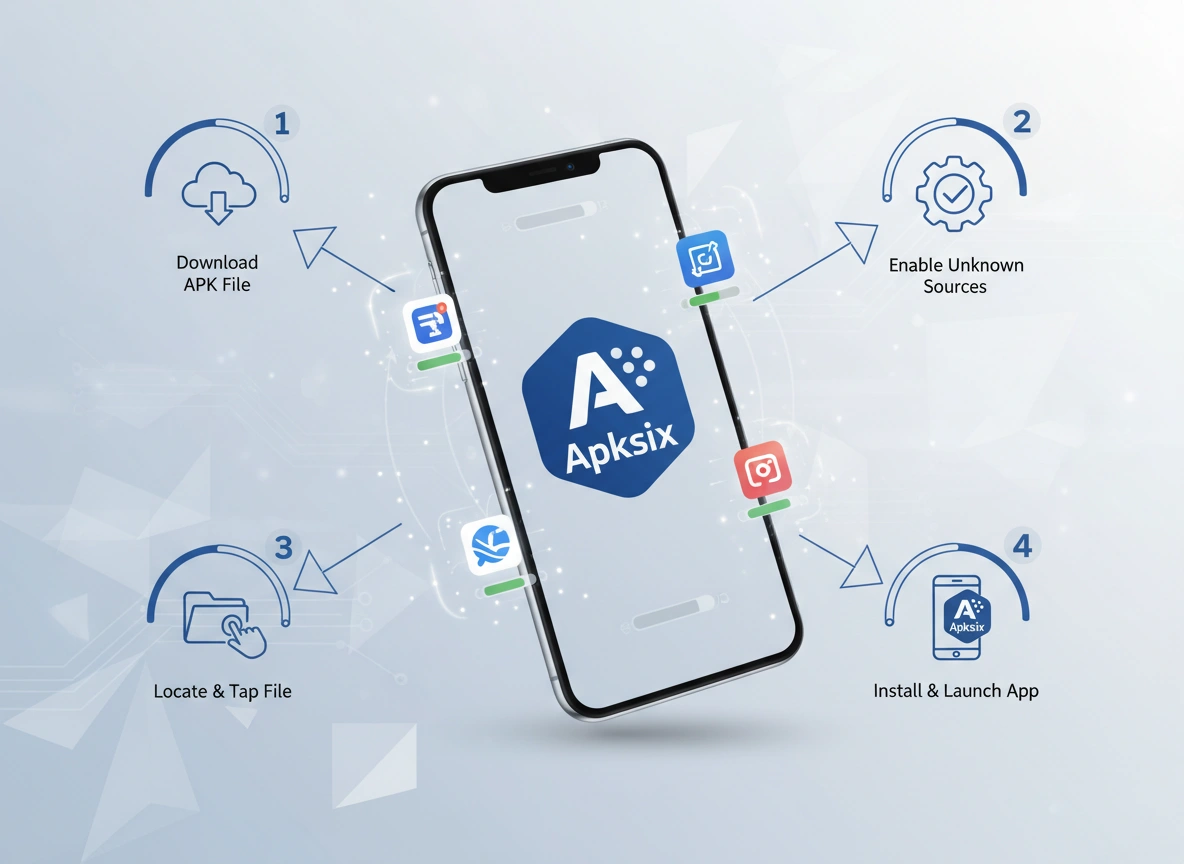
The world of Android applications is vast and ever-expanding. While official app stores like the Google Play Store serve as the primary gateway for most users, there are alternative platforms that offer a different kind of access to the digital tools and games we use daily. One such platform is Apksix. This guide provides a comprehensive walkthrough on how to safely navigate and install applications from Apksix, ensuring you understand the process, its benefits, and the necessary precautions.
1. Introduction to Apksix and Its Purpose
Apksix is an online repository for Android application package files, commonly known as APKs. An APK file is the format used by the Android operating system for the distribution and installation of mobile apps. Think of it as the Android equivalent of a .exe file on a Windows computer. Every app you download from the Google Play Store is installed via an APK, though the process is managed automatically in the background.
So, what is the purpose of a platform like Apksix? It serves several key functions for the Android community. Primarily, it acts as a third-party app source, hosting a wide collection of apps that users can download directly to their devices. This includes various versions of popular apps, apps that may not be available in certain geographic regions, or even applications that are no longer listed on official stores. For developers, it can be a way to distribute beta versions of their apps for testing. For users, it offers greater flexibility and control over the applications they choose to install.
2. Benefits of Using Apksix for App Downloads
While using the official Play Store is recommended for its security and ease of use, there are distinct advantages to using a platform like Apksix.
- Access to Older Versions: Sometimes, a new app update can remove a feature you liked, introduce bugs, or change the user interface in a way you dislike. Apksix often hosts an archive of previous app versions, allowing you to roll back to a version that works best for you. This can be invaluable when a critical function is altered or your device is no longer compatible with the latest update.
- Geographic Restriction Bypass: Many apps are released on a regional basis. You might hear about an exciting new app or game that is only available in a specific country. With Apksix, you can often find and download the APK file directly, bypassing these geographical limitations and gaining access to apps you otherwise couldn’t.
- Early Access: Before an app is officially launched worldwide, it might be soft-launched in a few select markets for testing. Third-party platforms can provide access to these early releases, letting you try out new features and applications before they are widely available.
- App Availability: Not every app makes it onto the Google Play Store. Some apps may be removed for policy violations, or developers might choose to distribute their work independently. Apksix can be a place to find these niche or delisted applications.
- Control and Backup: Downloading an APK file gives you a tangible copy of the application. You can store this file on your device, computer, or cloud storage as a backup. If you need to reinstall the app later and it’s no longer available, you have the installation file ready to go.
3. Step-by-Step Guide to Installing Apps from Apksix
Installing an app from Apksix involves a few more steps than downloading from the Play Store, but the process is straightforward. Here’s a detailed breakdown.
Prerequisite: Enabling “Install from Unknown Sources”
By default, Android devices are configured to block installations from sources other than the Google Play Store. This is a crucial security feature to prevent accidental installation of malicious software. To install an APK from Apksix, you must first grant permission.
The process varies slightly depending on your Android version:
- For Android 8 (Oreo) and newer:
-
- Go to your device’s Settings.
- Tap on Apps & notifications (or Apps).
- Find and tap on the browser you will use to download the APK file (e.g., Google Chrome, Firefox).
- Scroll down and select Install unknown apps.
- Toggle the switch for Allow from this source to the “On” position.
- For Android 7 (Nougat) and older:
-
- Go to your device’s Settings.
- Tap on Security (or Lock screen and security).
- Find the Unknown sources option.
- Toggle the switch to enable it. You will see a warning message; read it and tap OK to confirm.
Once this permission is enabled for your browser, you can proceed with the installation.
Installation Steps:
- Open Your Web Browser: Launch the browser for which you just enabled unknown app installations.
- Navigate to the Apksix Website: In the address bar, type the official URL for Apksix and press enter.
- Find the App: Use the search bar or browse through the categories to find the application you want to download. Be specific with your search query to find the correct app.
- Select the App and Version: Click on the app listing. You may see different versions available. If you need a specific older version, select it from the list. Otherwise, the latest version is usually the best choice.
- Download the APK File: Click the “Download” button. Your browser may show a security warning, stating that this type of file can harm your device. This is a standard warning for all APK downloads. If you are confident in the source, tap OK or Download anyway to proceed. The file will begin downloading to your device, and you can monitor its progress in your notification panel.
- Open the Downloaded File: Once the download is complete, tap on the notification to open the file. Alternatively, you can open your device’s File Manager app, navigate to the Downloads folder, and find the APK file you just saved.
- Install the App: Tapping the APK file will bring up an installation screen. It will show the permissions the app requires to function. Review these permissions carefully. If you are comfortable with them, tap the Install button at the bottom of the screen.
- Wait for Installation: The installation process will take a few moments. Once it’s finished, you will see a confirmation message. You can choose to either Open the app immediately or tap Done to close the installer.
The app is now installed on your device and will appear in your app drawer alongside all your other applications.
4. Tips for Safe APK Downloads and Avoiding Malware
The biggest risk of downloading apps from third-party sources is the potential for malware. Malicious apps can steal personal data, display intrusive ads, or damage your device. It is essential to be vigilant.
- Stick to Reputable Sources: While this guide focuses on Apksix, the principle applies everywhere. Use well-known and trusted APK sites that have a history of providing clean files. Read reviews and community feedback about the platform itself.
- Verify the App’s Digital Signature: Every legitimate Android app is signed by its developer with a digital certificate. If you try to install an update for an app, Android checks if the new APK’s signature matches the original. If they don’t match, the installation will fail. This prevents tampered apps from being installed over legitimate ones.
- Scan APK Files: Before installing, use a reliable mobile security app (like Malwarebytes, Avast, or Bitdefender) to scan the downloaded APK file. Many of these security apps have a feature specifically for scanning files for threats.
- Check App Permissions: During the installation step, carefully review the permissions the app is requesting. Does a simple calculator app really need access to your contacts and microphone? If the permissions seem excessive for the app’s function, it is a major red flag. Do not install it.
- Disable Unknown Sources After Installation: As a best practice, once you have finished installing your desired app, go back into your settings and disable the “Install from unknown sources” permission. This restores your device’s default security setting and prevents accidental installations in the future.
5. Troubleshooting Common Issues During Installation
Sometimes, things don’t go as planned. Here are some common problems and their solutions:
- “App Not Installed” Error: This is a generic error that can have several causes.
-
- Insufficient Storage: Your device might not have enough free space to install the app. Try clearing your cache or deleting unnecessary files.
- Corrupted File: The APK file you downloaded may be incomplete or corrupted. Try downloading it again.
- Incompatible Version: The app version you downloaded might not be compatible with your device’s hardware (CPU architecture) or Android version. Look for a different version of the app that is compatible.
- Signature Conflict: You might be trying to install an app with a different digital signature over an existing one. To fix this, you must first uninstall the version of the app currently on your device and then try installing the new APK.
- “Parse Error: There was a problem parsing the package”: This error almost always means the APK file is corrupted or not fully downloaded. It can also occur if the app is not compatible with your device’s Android version. Re-downloading the file or finding a compatible version is the solution.
- Download Fails to Start: If the download doesn’t begin, check your internet connection. You could also try clearing your browser’s cache and cookies or using a different web browser to download the file.
6. Conclusion
Installing apps from Apksix offers a level of freedom and access that can significantly enhance your Android experience. Whether you’re seeking to bypass geo-restrictions, use an older version of a favorite app, or simply explore applications not found on official stores, the process is well within reach for any user.
However, this freedom comes with the responsibility of ensuring your own digital safety. By following the steps outlined in this guide—from enabling unknown sources correctly to diligently vetting the files you download and the permissions they request—you can navigate the world of third-party app installations with confidence. Always prioritize security, be mindful of the risks, and take the necessary precautions. This balanced approach will allow you to unlock the full potential of your Android device safely and effectively.
Please vist this website for more info.