Turning a brilliant app idea into reality is an exhilarating journey. You’ve sketched the wireframes, written the code, and maybe even tested it on your own device. But to share your creation with the world—specifically, the millions of iPhone and iPad users globally—you need access to the Apple App Store. That access comes through one specific gateway: the Apple Developer Program.
Without this account, your app remains stuck on your personal computer. Buying an iOS Developer Account is the critical step that transforms you from a hobbyist coder into a published developer. While the process might seem intimidating at first glance, Apple has streamlined it significantly over the years. This guide will walk you through everything you need to know, from the types of memberships available to the exact buttons you need to click to get started.
What Is an iOS Developer Account and Why Do You Need It?
An Buy IOS Developer Account, formally known as membership in the Apple Developer Program, is your professional license to distribute software within Apple’s ecosystem. It isn’t just a fee you pay to upload a file; it is a comprehensive suite of tools and privileges.
When you purchase a membership, you unlock several critical capabilities:
- App Store Distribution: This is the big one. It allows you to submit your apps to the App Store for iPhone, iPad, Mac, Apple Watch, and Apple TV.
- Beta Testing with TestFlight: Before launching, you can invite up to 10,000 external testers to try your app using TestFlight. This feedback loop is invaluable for polishing your user experience.
- Advanced Capabilities: You gain access to core Apple technologies like SiriKit, Apple Pay, iCloud storage, Push Notifications, and Game Center integration.
- Analytics: You get detailed data on how your app is performing, who is downloading it, and where your crashes are happening.
Think of this account as your business permit. Without it, you are building a house on land you don’t have permission to build on. Securing your account early in your development process is often a smart move, as it allows you to test on real devices and set up necessary certificates before your launch deadline looms.
Individual vs. Organization: Choosing the Right Program
Before you pull out your credit card, you need to make a crucial decision. Apple offers two primary enrollment types for its standard program. Choosing the wrong one can lead to administrative headaches later, so it is important to get this right from the start.
Individual Membership
This is the most common option for solo developers, freelancers, and students.
- The Name on the Store: Your personal name (e.g., “John Smith”) will appear as the “Seller” in the App Store. You cannot use a business name or brand name here.
- Verification: The process is faster because Apple only needs to verify your identity, usually via your personal credit card and ID.
- Access: You are the only person who can access the account. You cannot add other team members to help manage the app.
Organization Membership
This path is for companies, non-profits, and government entities.
- The Name on the Store: Your legal entity name (e.g., “Tech Solutions LLC”) appears as the Seller. This looks much more professional for businesses.
- Verification: This is more rigorous. You must provide a D-U-N-S Number (a unique nine-digit identifier for businesses), and you must have the legal authority to bind the organization to legal agreements.
- Access: You can add multiple team members to the account with different permissions (e.g., developers, finance, marketing).
Which one should you pick?
If you are a solo indie developer making a game in your spare time, go with Individual. If you have formed an LLC or corporation for your app business, or if you are working with a partner, you must choose Organization.
Prerequisites: What You Need Before You Start
You cannot simply breeze through the signup without preparation. Gather these items before you begin the enrollment process to save yourself frustration.
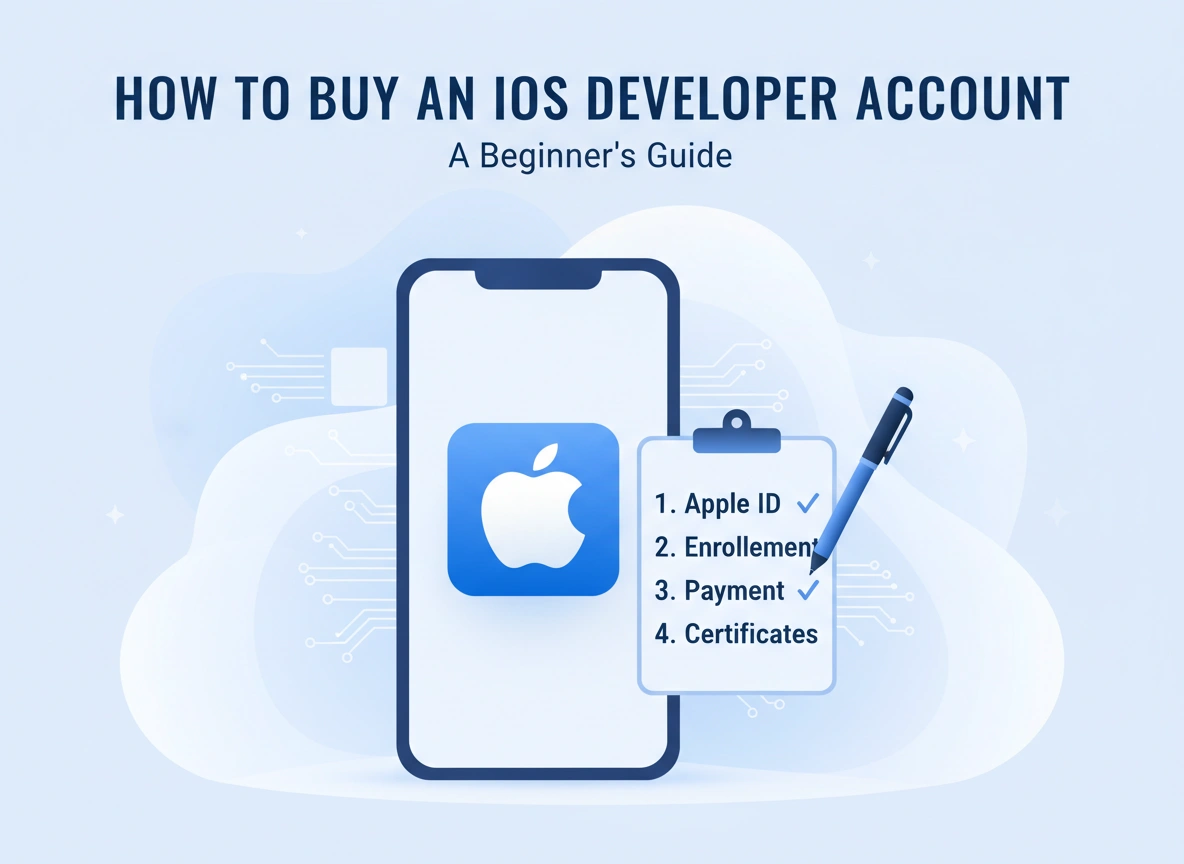
- An Apple ID: It is highly recommended to create a separate Apple ID specifically for your developer business. Mixing your personal iCloud account (with your family photos and music) with your business account can get messy. Ensure two-factor authentication is turned on; Apple requires it.
- A Valid Payment Method: You need a credit card. Apple does not accept debit cards in some regions for developer enrollment, and prepaid cards are generally rejected. The name on the card must match the name on the Apple ID.
- A D-U-N-S Number (Organizations Only): If you are enrolling as a company, check if you have a D-U-N-S number. If you don’t, you can request one for free from Dun & Bradstreet, but it can take a few days or weeks to process.
- Legal Authority (Organizations Only): You must be the owner/founder or have express legal authority to sign contracts for the business.
Step-by-Step Guide to Buying Your Account
Once you have your prerequisites ready, follow these steps to secure your account. The cost for the standard Apple Developer Program is currently $99 USD per membership year.
Step 1: Download the Apple Developer App
While you can still enroll via the web in some regions, Apple now strongly encourages (and in many places requires) users to enroll via the Apple Developer app on an iPhone or iPad. This method simplifies identity verification significantly.
- Open the App Store on your iPhone or iPad.
- Search for “Apple Developer” and download the app.
- Launch the app and sign in with the Apple ID you intend to use for development.
Step 2: Start the Enrollment
- Tap the Account tab in the bottom right corner.
- Tap on the button that says Enroll Now.
- Read through the benefits screen and tap Continue.
Step 3: Enter Personal Information
You will be asked to verify your personal information. This includes your legal first and last name, phone number, and address.
- Crucial Tip: Do not use nicknames. If your legal name is “Robert” but you go by “Bob,” use “Robert.” This must match your government ID exactly.
Step 4: Identity Verification
This is where using the app pays off. You may be asked to scan your driver’s license or government ID using your device’s camera. You might also need to take a selfie to prove you are the person on the ID. This biometric verification helps Apple prevent fraud.
Step 5: Select Entity Type
Select whether you are enrolling as an individual or an organization.
- If Individual: You will proceed directly to the payment screen.
- If Organization: You will be prompted to enter your legal entity name and D-U-N-S Number. Apple will check their database to ensure the business is legitimate.
Step 6: Review and Pay
Read the Apple Developer Program License Agreement. It is long, legal, and dry, but it outlines what you can and cannot do. Once you agree, you will be taken to the subscription screen.
- Confirm the annual subscription fee ($99).
- Authenticate the purchase using Face ID, Touch ID, or your Apple ID password.
- The charge will be processed as a recurring annual subscription.
Step 7: Wait for Activation
For individuals, activation is often instant or takes less than 24 hours. For organizations, it can take longer (sometimes a few days) as Apple manually verifies business details. You will receive a welcome email once your account is fully active.
Tips for Setting Up Your Account Properly
Once you get that “Welcome” email, do not just start uploading code. Take a moment to configure your account correctly.
- Set Up Banking and Tax Info Immediately: Even if your app is free, you should set this up. If you plan to sell the app or offer in-app purchases, Apple cannot pay you until your tax forms and banking details are verified. This can take time, so do it first.
- Manage Certificates and Profiles: Go to the “Certificates, Identifiers & Profiles” section of the developer website. You will need to create a “Distribution Certificate” to publish your app.
- Designate Roles (Organizations Only): If you are a company, invite your team members immediately. Give developers “Developer” access and your finance team “Finance” access. Never share the main Account Holder credentials with employees.
Common Mistakes to Avoid
The process is straightforward, but pitfalls exist. Avoid these common errors to ensure a smooth experience.
1. Using a Personal Email for Business
If you are starting a serious business, don’t use coolcoder99@gmail.com. Create a professional email address or a dedicated Apple ID. If you lose access to that personal email, you lose your business.
2. Ignoring the D-U-N-S Number Mismatch
If your company is legally “Tech Solutions, LLC” but your D-U-N-S record says “Tech Solutions,” Apple might reject the enrollment. Ensure your Dun & Bradstreet information matches your legal documents exactly before you apply.
3. Forgetting the Annual Renewal
Your membership lasts one year. If it expires, your apps are removed from the App Store. While Apple keeps the data, your users won’t be able to download your app until you pay. Enable auto-renew to avoid accidental takedowns.
4. Rushing the Verification
When Apple asks for ID, ensure the photos are clear, well-lit, and on a plain background. blurry photos trigger manual reviews, which can add weeks to your wait time.
Conclusion
Buying an iOS Developer Account is a rite of passage for modern software creators. It represents a commitment to your craft and a willingness to play on one of the world’s biggest digital stages. While the $99 fee and the verification hoops might seem like hurdles, they maintain the quality and security that users expect from the App Store.
By following this guide, choosing the right entity type, and preparing your documentation in advance, you can navigate the enrollment process quickly. The real work begins after the purchase—building an app that delights users and stands out in the marketplace. But now, at least, you have the keys to the door.